Everything in the recorder.
Record in the browser, share a link before you stop, and get answers back. Here is what each part does.
Recording
Screen, camera or both, from the browser.
- A camera bubble you can move, in three sizes.
- Pause, resume, restart, or rewind the last few seconds to record over a mistake.
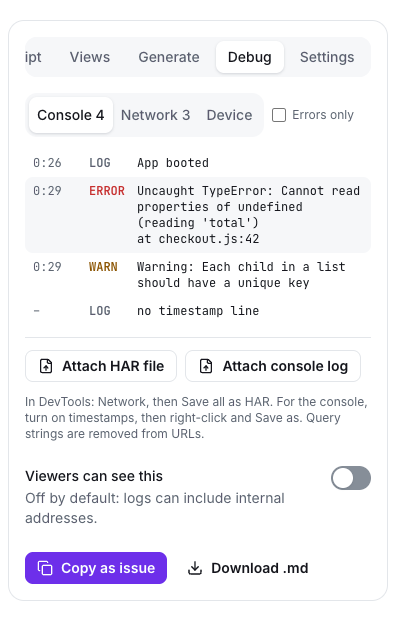
- Live captions and a transcript while you record.
- Flip the picture, and brighten it automatically in low light.
- Blur your background. It runs on your own computer, so nothing is sent anywhere.
- Camera-only videos on a clean backdrop.
- Background-noise reduction, a countdown and keyboard shortcuts.
- Record a call from its browser tab. The recording lands in Meetings.
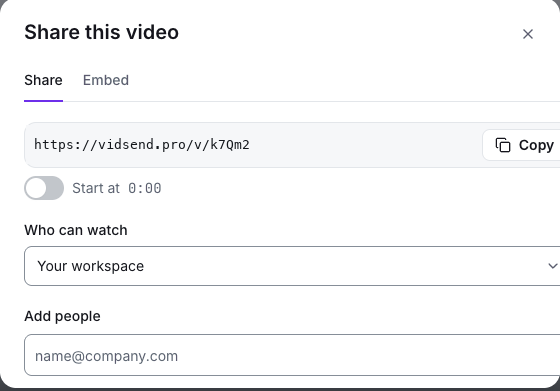
- Bug-report mode saves your browser, system and screen details with the video.
Sharing and privacy
The link is copied before you stop. You decide who can open it.
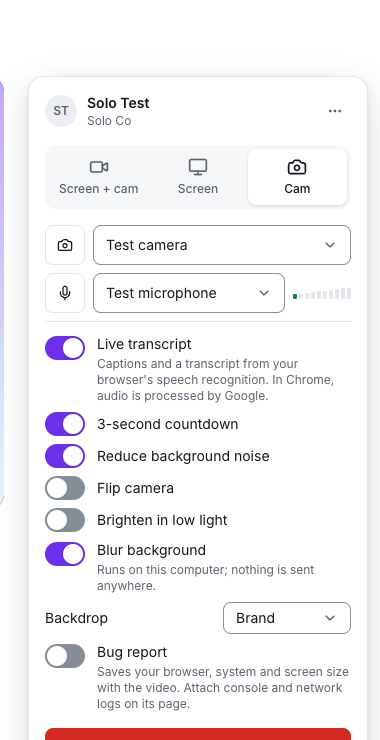
- Three levels: anyone with the link, your workspace, or only the people you add.
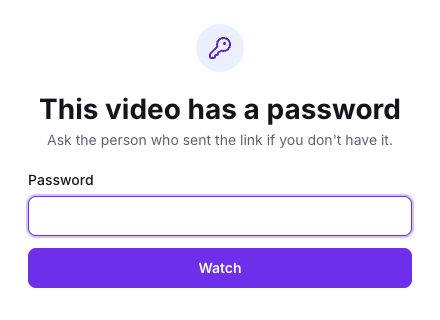
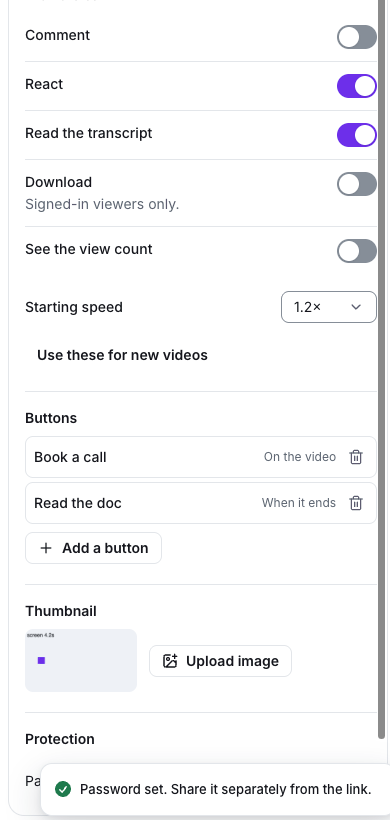
- Password protection, and email gates that ask for an email or require one.
- Public links that expire, per video or as a limit an admin sets for the whole workspace.
- Downloads on or off per video, and an admin switch to turn them off workspace-wide.
- Public folder pages that only ever show the folder's public videos.
- Embeds, including anonymous reactions on public videos.
- A drafted share message for chat or email.
Watching and responding
Viewers answer at the exact moment, in the way that suits them.
- Comments pinned to a moment, with one level of replies and @mentions.
- Emoji reactions on the timeline.
- Video replies, posted at the moment you're answering.
- Tasks pinned to moments that each viewer ticks off.
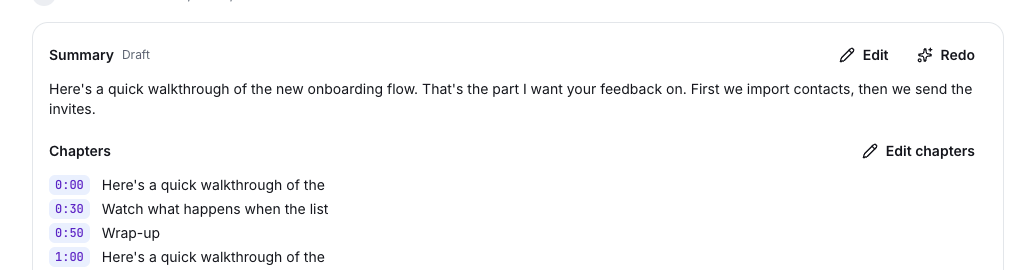
- Chapters, a summary and a searchable transcript, with captions and a speed control.
- Buttons pinned to the video, at the end, or underneath. Set a default for all your videos.
 Priya just now0:07Can we move the import step before invites?
 Sam just nowAgreed, that's where people drop off.
Editing
Fix the take without starting again.
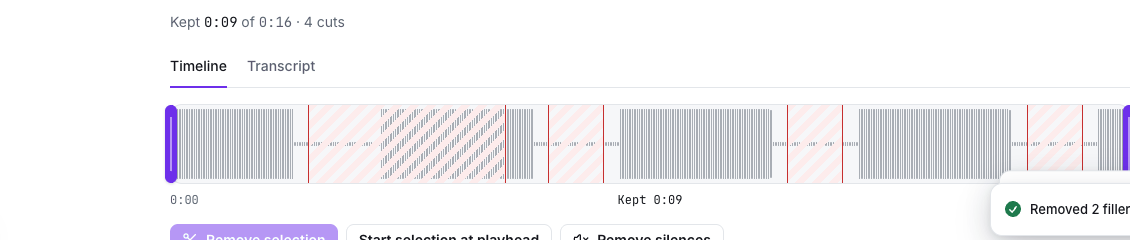
- Trim the start and end, and cut out the middle.
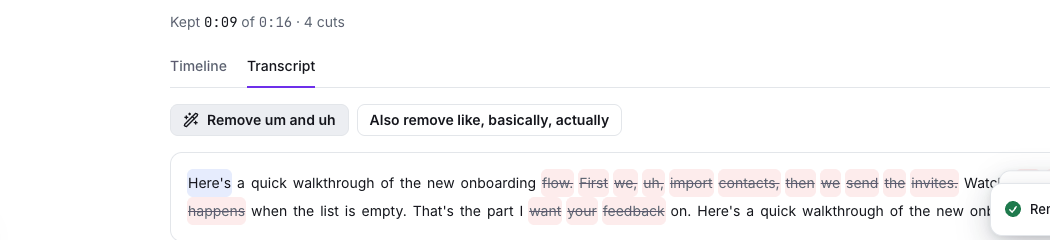
- Edit by transcript: delete words to cut them.
- Remove filler words ("um", "uh") and silences in one click.
- Text, arrow and box overlays with timing, and backdrops.
- Every edit can be undone. "Revert to original" always works.
Organising
Find any video by its title or by what was said in it.
- A library with folders, an archive and a 30-day trash.
- Bulk move, archive and delete.
- Search titles and what was said.
- Tags you can browse and follow.
- Playlists in a set order, with "Play all".
- Watch later, with a reminder the next morning.
- Duplicate a video.
- Screenshots with mark-up (boxes, arrows, text, blur, crop) and their own share link.
- A Home feed of what's new in your spaces, tags you follow, and what's most watched this week.
OnboardingPlaylist · 4 videosPlay all
3:12
Welcome to the teamMei · 2 days ago · 14 views2:41
How we review pull requestsDaniel · 4 days ago · 9 views4:05
Answering billing questionsLena · last week · 22 views1:58
Walking a customer through pricingTom · last week · 11 viewsTeams and admin
Roles, spaces and the settings an admin is asked about.
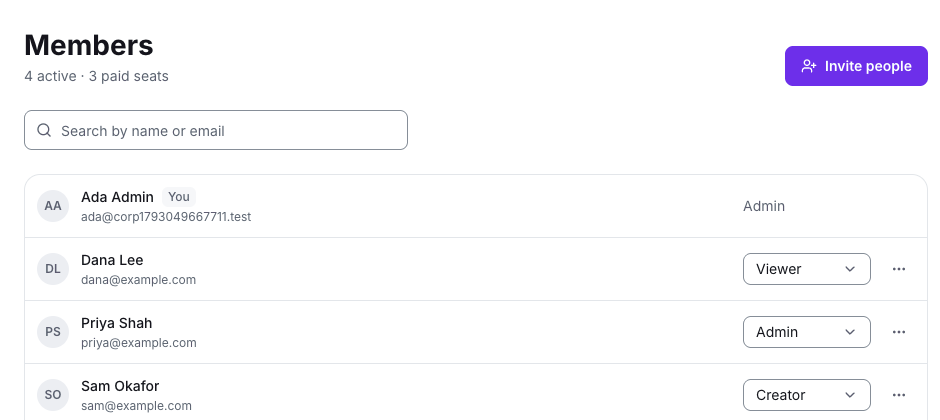
- Workspaces with roles: admin, creator and viewer. Viewers join free.
- Invites, and joining by email domain with or without admin approval.
- Spaces, open or closed, plus an all-company space.
- Workspace branding: logo, colour, and hiding "Made with VIDsend.pro" on paid plans.
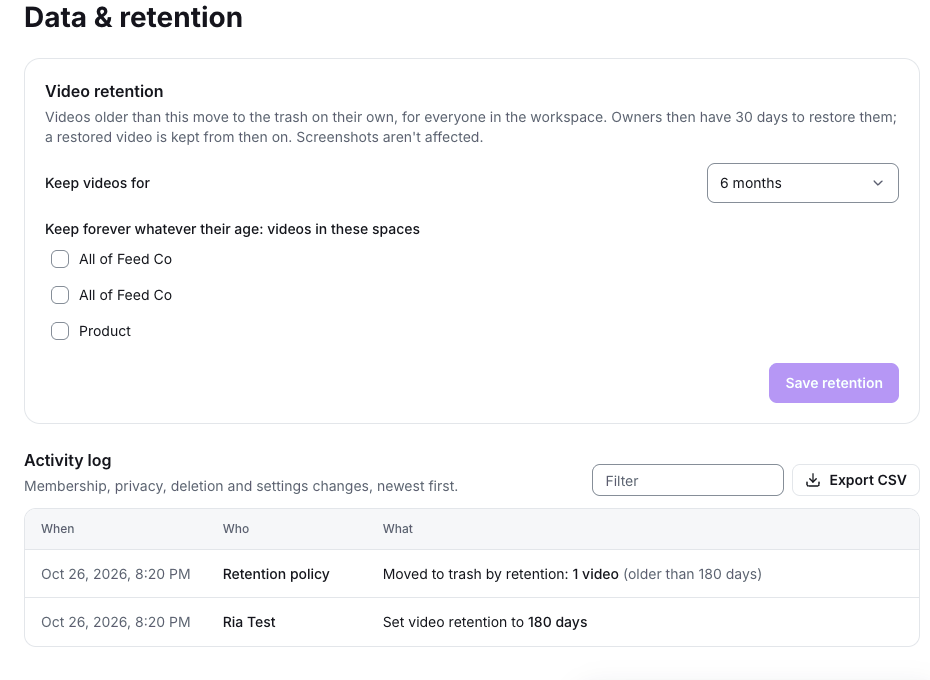
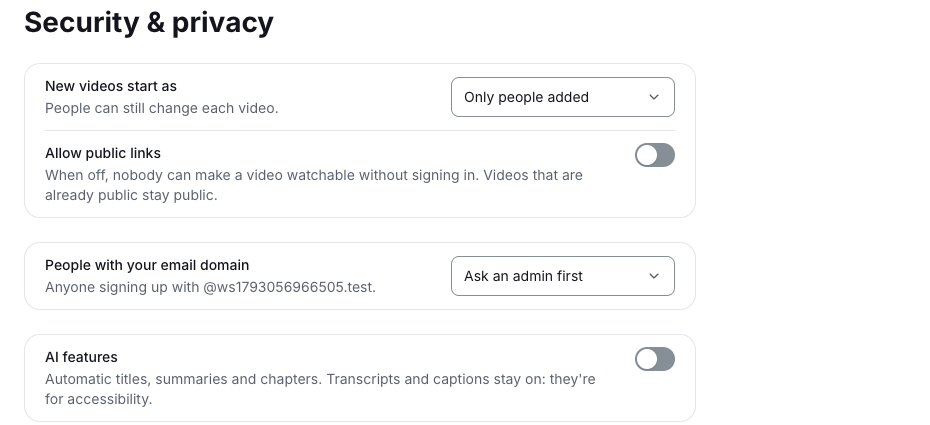
- Security settings and a data-retention policy.
- An activity log with CSV export.
- Workspace insights: active people, seats nobody is using, top creators.
- Several workspaces, with a switcher.
Insights
Know who watched, how far they got, and what they clicked.
- Per video: views, unique viewers, average completion, who watched and how far, and button clicks.
- Export any of it as CSV.
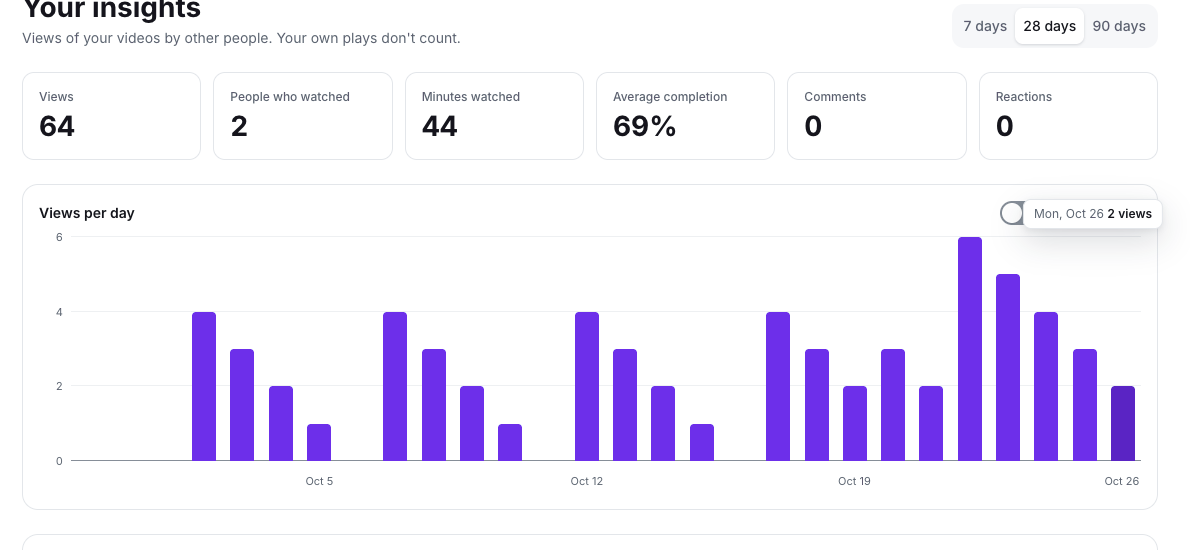
- Personal insights over 7, 28 or 90 days, compared with the period before.
AI drafts
Titles, summaries, chapters, and documents drafted from your transcript.
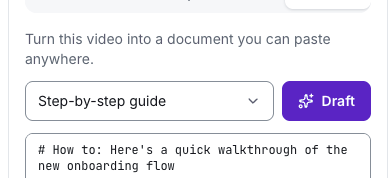
- Step-by-step guides, SOPs, bug reports and PR descriptions.
- Turn a video into a Linear or GitHub issue.
- Admins can turn AI off for the whole workspace.
Developers
Bug reports with the video, the environment and the logs in one link.
- Attach a DevTools network export (HAR) and a console log. They line up with the video, and clicking a row jumps to that moment.
- Copy a ready-made issue.
- URLs are stripped of query strings.
- Debug details are hidden from viewers unless you turn them on.